Blueprint Components
There's a little more to editing a blueprint's components so I'll walk you through it. Please check the Intro to Blueprint Editing if you're new to modifying blueprints with PalSchema.
Finding the Component
In this example we'll be editing Direhowl.
Let's look at Pal/Content/Pal/Blueprint/Character/Monster/PalActorBP/Garm/BP_Garm.uasset in FModel. Open the asset, hit Ctrl+F and look for PalCharacterMovementComponent.
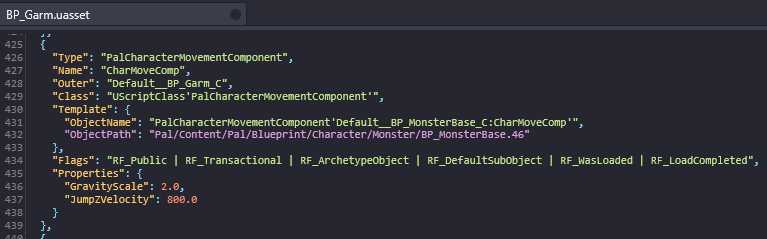
You'll see the names PalCharacterMovementComponent and CharMoveComp. You don't want to use either of these, instead I will show you where to find the correct component name that you need to be using.
Take a note of the asset's name that we're editing which is BP_Garm. As you may remember from the blueprint intro, we added a _C at the end to indicate the class so it becomes BP_Garm_C.
Now, we'll want to add Default__ in front of BP_Garm_C so it becomes Default__BP_Garm_C. Do you see a theme here? If not, here's an example with BP_PinkCat (Cattiva):
BP_PinkCat -> BP_PinkCat_C -> Default__BP_PinkCat_C. Very simple.
Next, hit Ctrl+F and search for "Name": "Default__BP_Garm_C".

You should now see a list of default properties for the default object of BP_Garm and among those properties are our Direhowl's components.
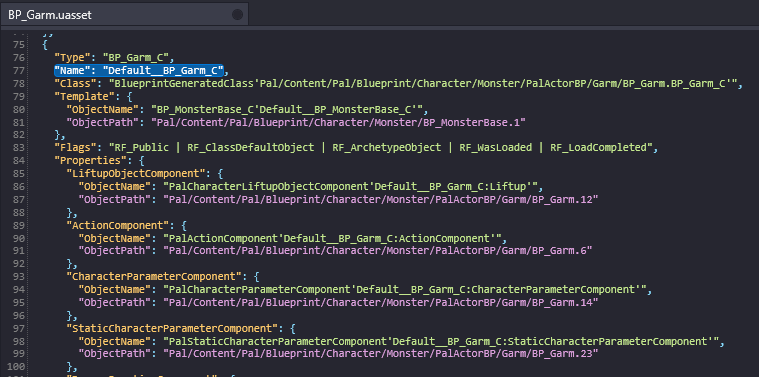
Scroll down a bit and you should see our PalCharacterMovementComponent in this properties list.

CharacterMovement is the correct name that we need to be using to edit the component.
Editing our Component
Now that we have found our component, let's get to editing.
Setup your mod folder within PalSchema's mods folder. It should look something like GarmMod/blueprints/garm.json.

Open garm.json and copy the following into it. We'll be editing JumpZVelocity to 3200.0 which is what controls how high a pal can jump.
{
    "BP_Garm_C": {
        "CharacterMovement": {
            "JumpZVelocity": 3200.0
        }
    }
}
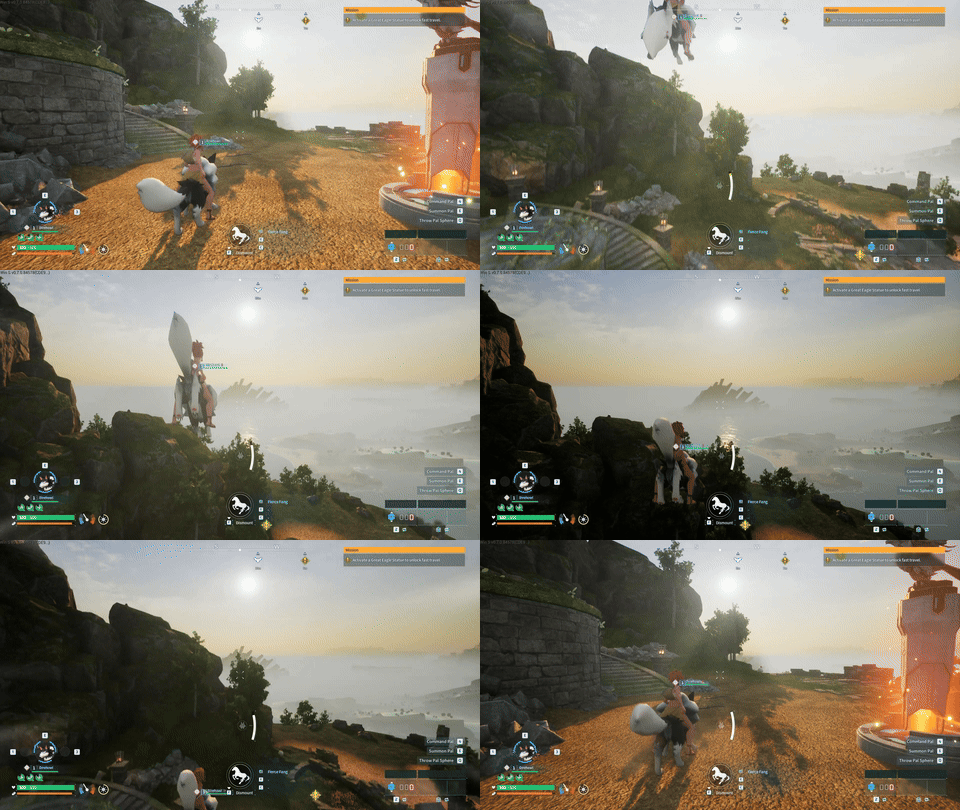
Now if we load into a world and jump while riding a Direhowl, we should jump much higher!